
Demo
See BizzPocket in action.
A short guided walkthrough of adding a product, narrated in English, Hindi or Gujarati, followed by the real dashboard screens. Then open a live demo store on your own phone.
01Walkthrough
Adding your first product, start to finish.
Under half a minute. Switch the narration language at any point; the video keeps its place.
Narration language
02What it covers
Five screens, one product.
The walkthrough follows the same flow as the real seller dashboard. These are the actual screens you will use on day one.
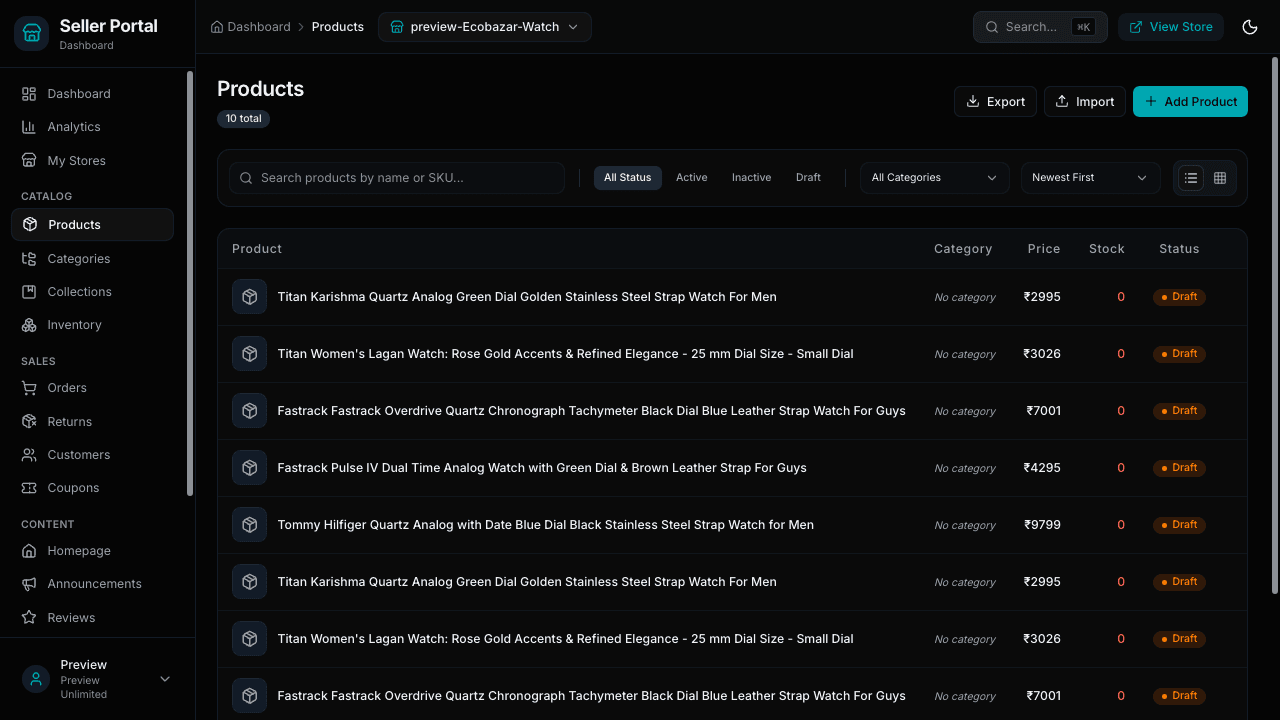 1
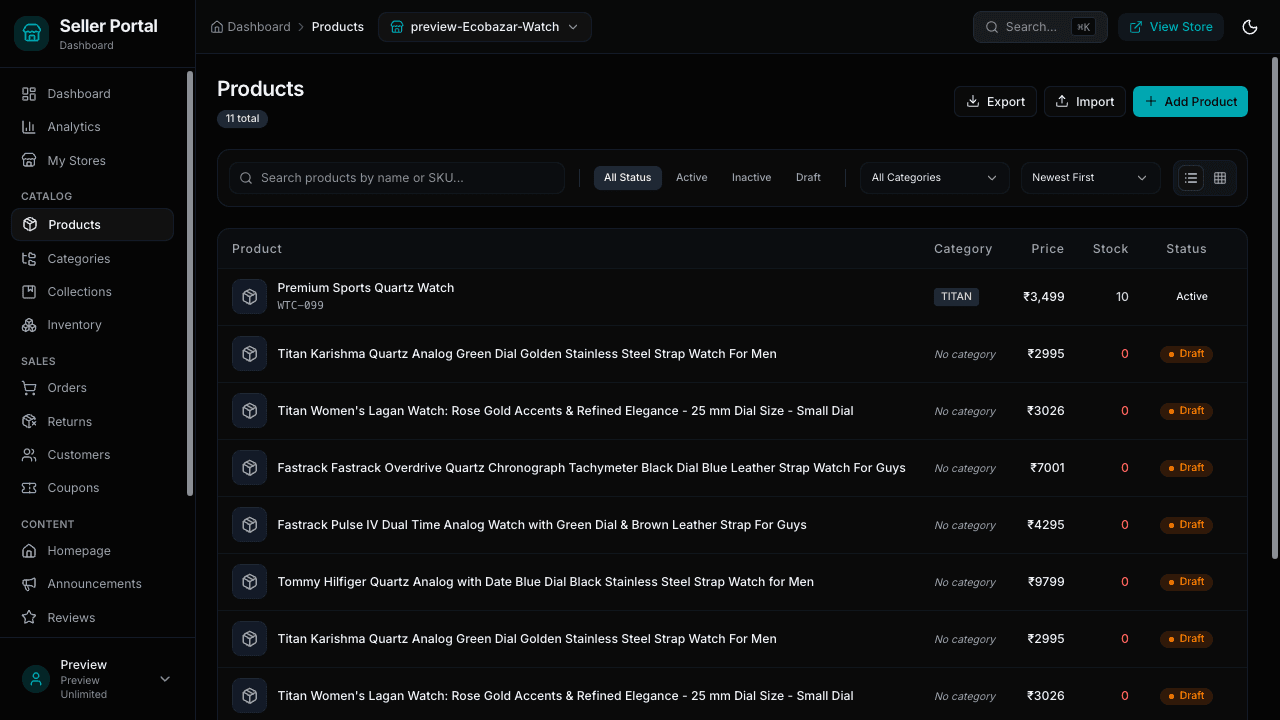
1Open Products and click Add Product
The products list shows every item with its category, price, stock and status, plus import and export.
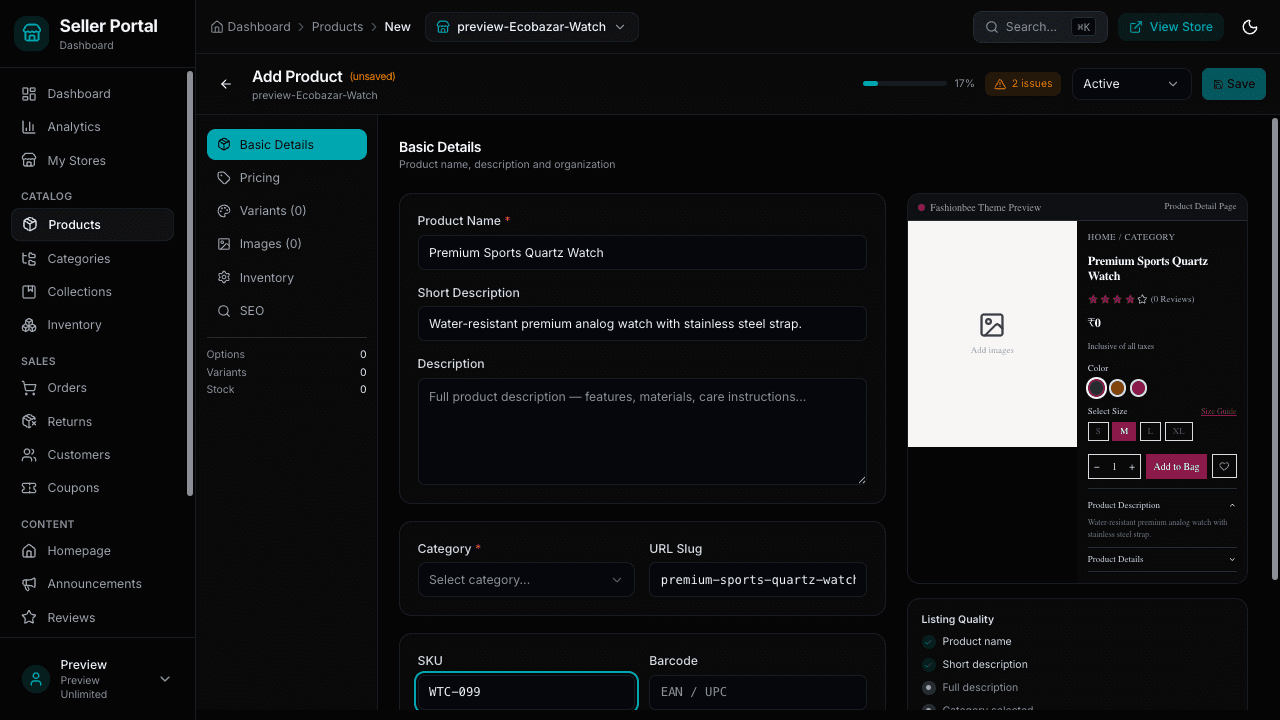 2
2Fill in the basic details
Name, short description, category and SKU. The FashionBee theme preview on the right updates as you type.
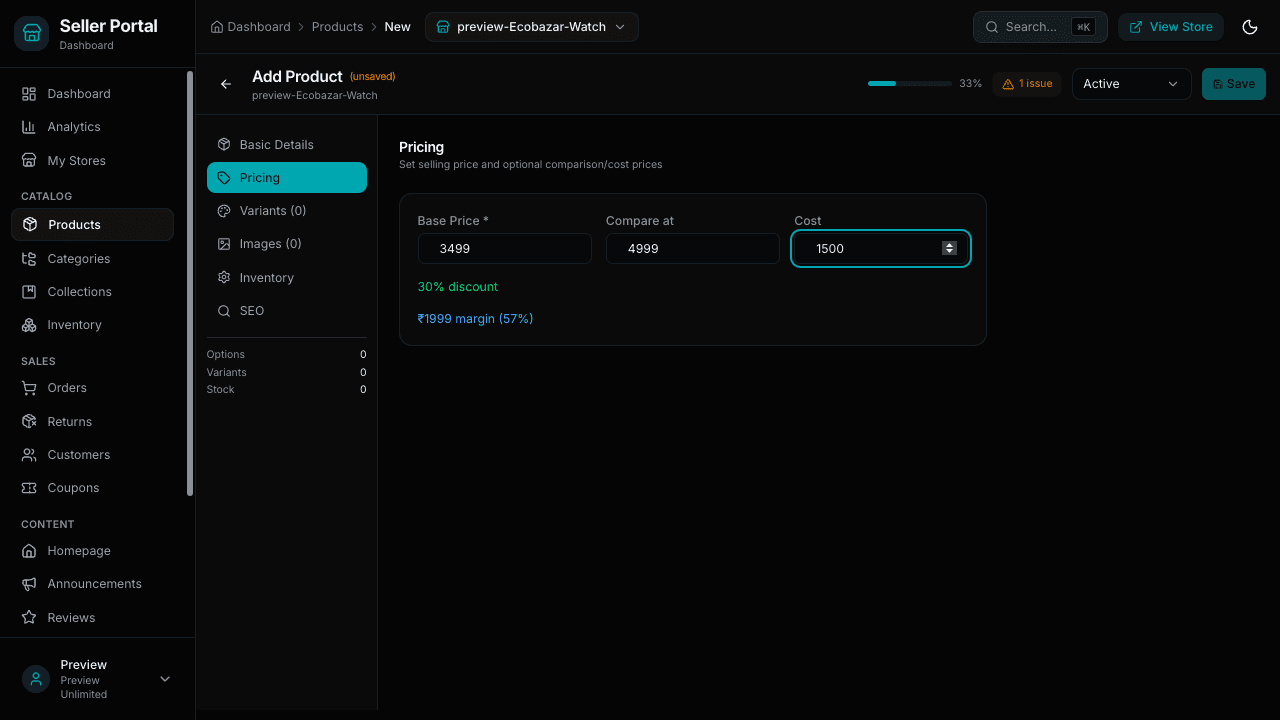 3
3Set the price
Base price, an optional compare-at price to show a discount, and your cost so the margin is calculated for you.
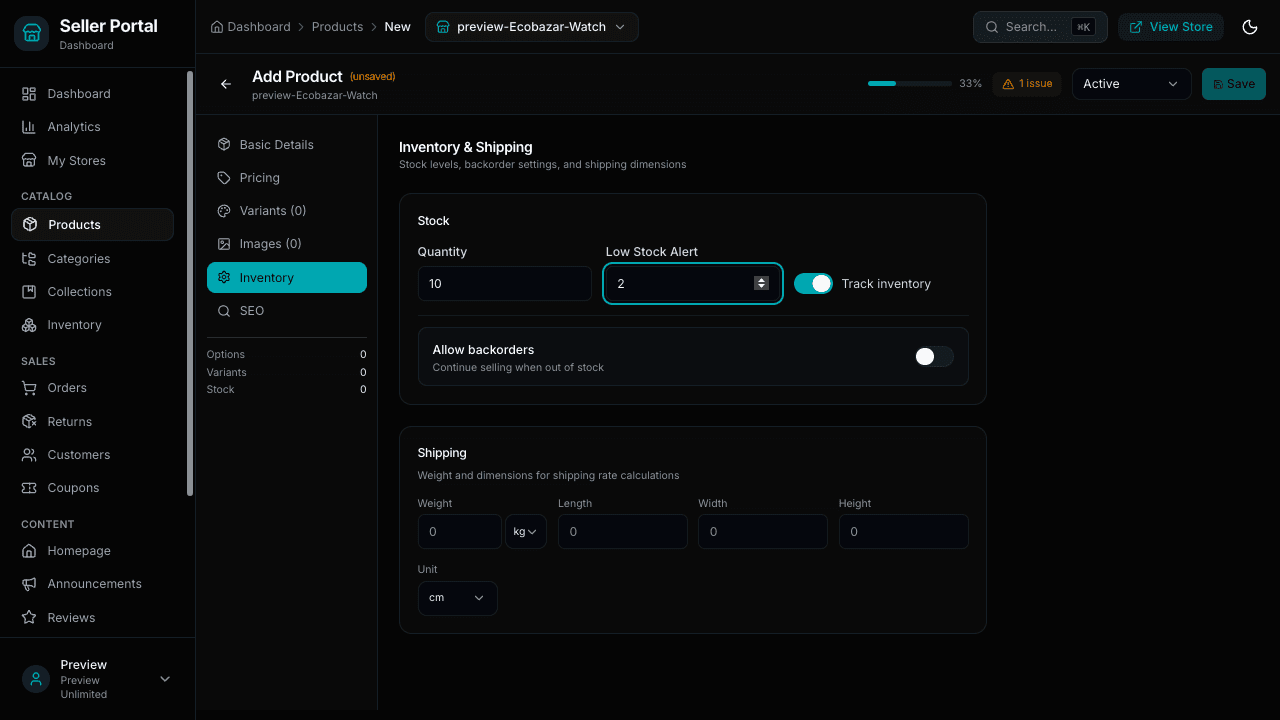 4
4Add stock and shipping details
Quantity, a low-stock alert, backorders, and the weight and dimensions used for shipping rates.
 5
5Save and it is live
The product appears at the top of your products list as Active and on your storefront straight away.
Want to see orders and shipping too?
The tutorials page has a step-by-step tour of the orders screen, and more walkthroughs are on the way.
Browse tutorials
03Live store
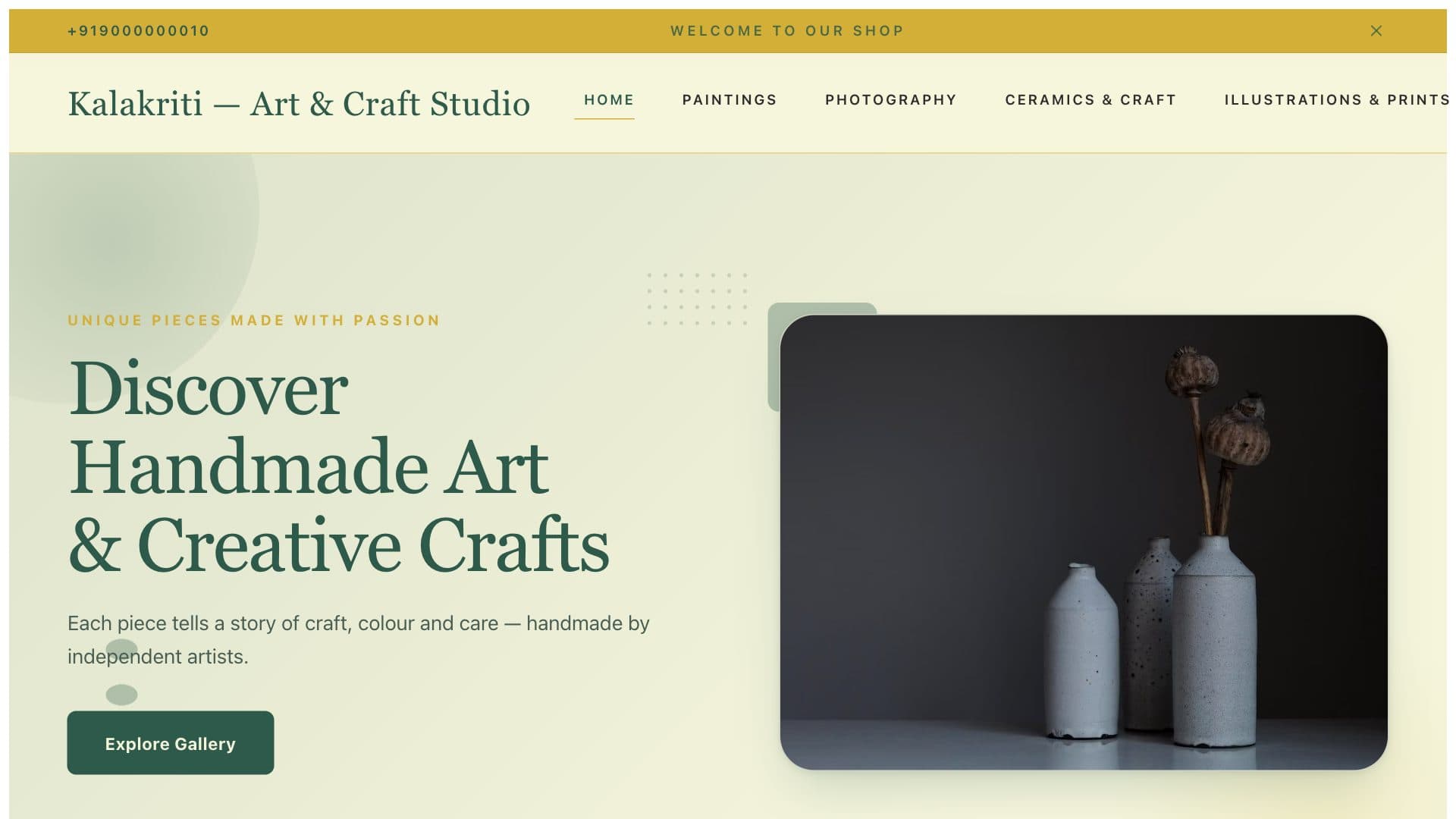
Shop a demo store on the ArtCraft theme.
The buyer side: product pages, cart and checkout as your customers will see them. Open it on your phone, since that is where most of your buyers will be.
Prefer a guided tour in Hindi or Gujarati?
Message us on WhatsApp and the Surat team can walk you through the dashboard for your category, whether that is sarees, jewellery, food or something else.
Ready when you are
Why watch when you can try it?
Create your store in minutes, free. A ₹1 one-time verification by UPI takes it live, and our team on WhatsApp helps if you get stuck.